Install Ibo Player Pro on Roku: Easy 2026 Channel Store Guide
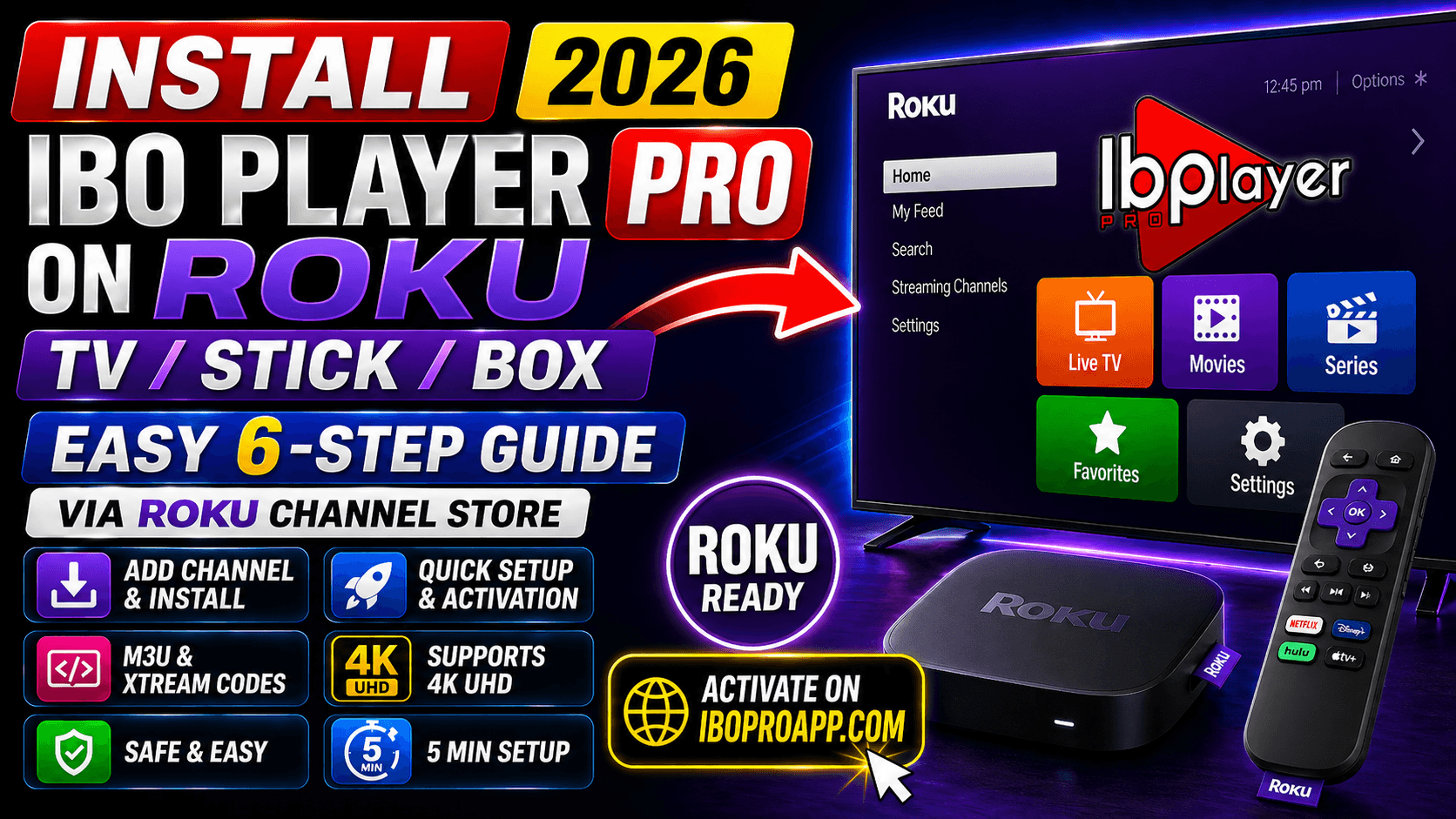
To install Ibo Player Pro on Roku, open the Roku Channel Store from the home screen, search for “Ibo Player Pro”, click Add Channel, then activate the app on iboproapp.com using your Device ID and Device Key to upload your M3U playlist. This 2026 tutorial walks you through every step needed to install Ibo Player Pro on your Roku TV, Roku Stick, or Roku Box, including a backup screen-mirroring method for regions where the channel is not visible in the Channel Store.
Ibo Player Pro is a professional M3U stream player built for fast playlist loading, smooth playback, and a clean, remote-friendly UI optimized for Roku OS. Whether you stream live TV channels, on-demand movies, or full series with Xtream Codes support, Ibo Player Pro on Roku delivers HD and 4K playback (on supported 4K Roku models) without the usual lags or glitches found in other M3U apps.
Whether you use a Roku Express, Roku Streaming Stick, Roku Streaming Stick 4K, Roku Ultra, or a Roku TV, this guide ensures a hassle-free installation in under 8 minutes. Note: Roku does not officially support sideloading consumer apps, so the Roku Channel Store and screen mirroring are the two safe paths.
Table of Contents
What You Need Before Starting
Before you install Ibo Player Pro on Roku, gather the following essentials. Having everything ready prevents the most common Channel Store and activation errors.
- A Roku TV, Roku Stick, or Roku Box running Roku OS 9.4 or later
- An active Roku account signed in on the device
- A stable internet connection (Ethernet recommended for 4K on Roku Ultra)
- A valid M3U playlist URL or Xtream Codes credentials from your IPTV provider
- The Roku remote (or the Roku mobile app for keyboard input)
- A phone or computer to complete activation on iboproapp.com
- About 8 minutes of setup time
How to Install Ibo Player Pro on Roku (7 Steps)
The fastest way to install Ibo Player Pro on Roku is through the official Roku Channel Store. Follow these seven steps in order — the process is identical on Roku TV, Roku Stick, and Roku Box.
- Prepare your Roku device. Power on your Roku TV, Roku Stick, or Roku Box and confirm it is connected to your TV via HDMI (Stick and Box) and to the internet via Wi-Fi or Ethernet.
Pro tip: On Roku Ultra and Roku Streaming Stick 4K, use Ethernet (Ultra) or 5GHz Wi-Fi (Stick 4K) for the smoothest 4K M3U playback. - Open the Roku Channel Store. From the Roku home screen, scroll down on the left menu and select Streaming Channels. This opens the Channel Store.
Pro tip: The menu name is identical across Roku TV, Stick, and Box, so the steps below work on every Roku model. - Search for Ibo Player Pro. Choose Search Channels from the Channel Store and type Ibo Player Pro using the on-screen keyboard or the Roku mobile app keyboard.
Pro tip: Try alternate spellings like “Ibo Pro Player” or “IboPro” if the first search returns no results — some regions list the app under a slightly different name. - Select the Ibo Player Pro channel. When the channel appears, click on it to open the details page. Verify the publisher and read recent reviews briefly.
- Add the channel to Roku. Press Add Channel (it may say Install). Confirm any PIN prompt if your Roku account requires one for new installs. Wait for the “Channel added” confirmation.
- Launch Ibo Player Pro. Press the Home button on your remote, scroll to the new Ibo Player Pro channel icon, and press OK to open it.
Pro tip: Long-press the * button on your remote and choose Move channel to drag Ibo Player Pro near the top of your home screen for one-click access. - Activate the app on iboproapp.com. The first launch displays your unique Device ID and Device Key. Visit iboproapp.com on a phone or computer, register the device, upload your M3U playlist or Xtream Codes credentials, complete the small activation fee, then return to your Roku and reopen the channel. Your channels and VOD will load automatically.
That is it — your Roku is ready to stream. If the channel is missing from your Roku Channel Store, use the alternative methods below.
What If Ibo Player Pro Is Not in the Roku Channel Store?
If you cannot find Ibo Player Pro in your region’s Roku Channel Store, two reliable workarounds let you stream M3U content on Roku. Both methods are documented as information not always covered on the official Ibo Player Pro website.
Method A: Change Roku Account Country
Roku gates many channels by region. Switching the country on your Roku account often makes Ibo Player Pro visible.
- On a computer, log in at my.roku.com.
- Click Update next to your country setting and select a country where the app is available (commonly United Kingdom or United States).
- On your Roku, go to Settings → System → System restart.
- After the reboot, sign out and back in to your Roku account.
- Reopen the Channel Store and search for Ibo Player Pro again.
Method B: Roku Screen Mirroring (Cast from Phone or PC)
Roku does not allow APK sideloading, but it fully supports screen mirroring. This lets you run Ibo Player Pro on your phone or PC and display it on your Roku TV.
- Install Ibo Player Pro on your Android phone, iPhone, or PC and complete activation on iboproapp.com.
- On Roku, go to Settings → System → Screen mirroring and set Screen mirroring mode to “Prompt” or “Always allow”.
- From an Android phone, swipe down and tap Cast or Smart View; from iPhone, use AirPlay; from a Windows PC, press Win+K.
- Select your Roku from the list of devices.
- Open Ibo Player Pro on the source device and play any channel — it streams directly to your Roku.
Screen mirroring is the most reliable workaround when the Channel Store install is blocked.
How Do I Activate Ibo Player Pro on Roku?
Activation links your Roku to your M3U playlist on the Ibo Player Pro server. Without activation, the channel will not load any content. This is the same activation flow used on every Ibo Player Pro platform.
- Open Ibo Player Pro on Roku. Note the Device ID and Device Key shown on the welcome screen.
- On a phone or computer, visit iboproapp.com and click Add Device.
- Enter your Device ID and Device Key exactly as shown (case-sensitive).
- Choose how to add your playlist: M3U URL, M3U file upload, or Xtream Codes credentials.
- Pay the one-time activation fee (approximately $5.99 per device).
- On your Roku, exit Ibo Player Pro completely (Home button) and reopen it. Channels and VOD will load automatically.
Pro Tips for Roku Users
These five tips squeeze the best performance out of Ibo Player Pro on Roku OS and unlock features the official documentation rarely covers.
- Tip 1: Clear the Roku channel cache. Press Home 5 times, then Up, Rewind twice, and Fast Forward twice. This refreshes the Channel Store cache and often makes “missing” channels appear.
- Tip 2: Use Ethernet on Roku Ultra. Wi-Fi packet retries cause buffering on heavy M3U playlists. Roku Ultra has a built-in Ethernet port — the most reliable option for 4K M3U streams.
- Tip 3: Set Display type to 4K HDR. On 4K-capable Rokus, go to Settings → Display type and confirm “4K HDR” is selected. Auto-detect occasionally falls back to 1080p.
- Tip 4: Enable Bandwidth saver only if needed. If your ISP throttles streaming, enable Settings → Network → Bandwidth saver only as a last resort — it can reduce live IPTV quality.
- Tip 5: Restart Roku weekly. Go to Settings → System → System restart. This clears cached memory and keeps Ibo Player Pro responsive on long streaming sessions.
Troubleshooting Common Issues
If something goes wrong during install or activation on Roku, one of these five fixes resolves it almost every time.
Why Won’t Ibo Player Pro Show in My Roku Channel Store?
The most common cause is a regional restriction tied to your Roku account country. Sign in at my.roku.com, change country, restart your Roku, and search again. If still missing, use the screen mirroring method described above.
The Installation Fails or Hangs at “Adding Channel”
Restart your Roku via Settings → System → System restart, confirm a strong internet signal, and check that your Roku has the latest firmware via Settings → System → System update. Then retry the install from the Channel Store.
The App Crashes Right After Opening
Remove the channel: from the home screen, highlight Ibo Player Pro, press the * button, and choose Remove channel. Restart your Roku, then reinstall from the Channel Store. Reactivate using the new Device ID on iboproapp.com.
Channels Don’t Load After Activation
Re-check your M3U URL on iboproapp.com. Common errors include expired playlists, extra spaces in the URL, or wrong Xtream Codes credentials. After fixing, exit and reopen Ibo Player Pro twice on your Roku.
Why Is the Stream Buffering on Wi-Fi?
Roku Wi-Fi performance varies by model. Move the Roku within line-of-sight of your router or switch to 5GHz. On Roku Ultra, switch to Ethernet for the most reliable 4K streaming. Buffering during peak hours often indicates ISP throttling.
Ibo Player Pro vs Other M3U Players for Roku
Here is how Ibo Player Pro compares against the most popular M3U player alternatives for Roku OS in 2026.
| Feature | Ibo Player Pro | IPTV Smarters Pro | Smart IPTV |
|---|---|---|---|
| Available in Roku Channel Store | Limited regions | Limited regions | Limited regions |
| Screen mirroring fallback | Yes (via phone/PC app) | Yes | Limited |
| Channel install price | Free (one-time activation $5.99) | Free | $5.49 one-time |
| 4K Ultra HD support on 4K Rokus | Yes | Yes | Yes |
| EPG (TV Guide) | Yes | Yes | Basic |
| Xtream Codes | Yes | Yes | No |
| Parental controls | Yes | Yes | No |
| Multi-language audio & subtitles | Yes | Yes | Limited |
| Setup difficulty on Roku OS | Easy | Easy | Easy |
| Best for | Cross-device M3U streaming with rich VOD metadata | Multi-platform users | Plug-and-play setup |
Ibo Player Pro Feature Highlights
Ibo Player Pro is optimized for fast M3U streaming on Roku. The player loads your playlists smoothly and lets you watch content in the highest quality without the lags or glitches common in other M3U apps.
- Easy streaming of M3U URLs and playlists
- Simple, intuitive UI designed for the Roku remote
- Supports all screen resolutions including 4K HDR on supported Roku models
- Movie and series details: release date, cast, trailer, and ratings
- Add channels, movies, and series to favorites
- Compatible with Roku audio passthrough and external speakers
- Multi-language audio selection
- Subtitles in movies and series
- Built-in parental control
Frequently Asked Questions
Is Ibo Player Pro available on the Roku Channel Store?
Availability depends on your region. In supported regions, Ibo Player Pro can be added directly from the Roku Channel Store. If it is not visible, you can change your Roku account country or use screen mirroring from a phone or PC running Ibo Player Pro. How much does Ibo Player Pro cost on Roku?
The Ibo Player Pro channel is free to add to Roku, but each device requires a one-time activation fee of approximately $5.99 on iboproapp.com to register and upload your M3U playlist. Can I sideload Ibo Player Pro on Roku?
No. Roku does not officially support sideloading of consumer apps. The supported methods are the Roku Channel Store install or screen mirroring from a phone, tablet, or PC that has Ibo Player Pro installed. What is the Device ID and Device Key in Ibo Player Pro on Roku?
The Device ID and Device Key are unique identifiers shown when you first open Ibo Player Pro on Roku. You enter both on iboproapp.com to register your device and upload your M3U playlist or Xtream Codes credentials. What if Ibo Player Pro is not in the Roku Channel Store?
Try changing your Roku account country at my.roku.com, sign out and back in, restart your Roku, and search again. If still missing, use screen mirroring from a phone or PC running Ibo Player Pro to display the stream on your Roku. Why won’t Ibo Player Pro install on my Roku?
Common causes include weak internet, an outdated Roku OS, or a regional Channel Store restriction. Restart the Roku, update Roku OS via Settings → System → System update, and confirm your Roku account country setting. Does Ibo Player Pro support 4K streaming on Roku?
Yes, on 4K-capable Roku models like Roku Ultra, Roku Streaming Stick 4K, and select Roku TVs. Use Ethernet for the most stable 4K streaming and confirm Display type is set to 4K HDR in Roku settings. Does Ibo Player Pro provide TV channels or content?
No. Ibo Player Pro is only a media player. It does not provide, sell, or supply any channels, movies, or content. Users must obtain legal M3U playlists from licensed providers.
Legal Disclaimer
Ibo Player Pro does not provide, sell, or supply any TV channels, movies, series, or content of any kind. It is strictly a media player that plays your own M3U lists. Users are solely responsible for using legal M3U playlists obtained from licensed providers and for complying with the broadcasting, streaming, and copyright laws applicable in their country or region. We do not host, distribute, or endorse any copyrighted content, and we are not affiliated with Roku, Inc. or any IPTV service provider.
Conclusion
Choosing to install Ibo Player Pro on Roku is the smart move for anyone who already streams on a Roku TV, Roku Stick, or Roku Box and wants a clean M3U player with 4K support, rich VOD metadata, and a remote-friendly interface. With the seven-step Roku Channel Store method — or the screen mirroring workaround for unsupported regions — you can be streaming your M3U playlist in under 8 minutes.
Pair Ibo Player Pro with an Ethernet connection on Roku Ultra, a clean M3U playlist from a reputable provider, and the latest Roku OS update, and you will have one of the smoothest IPTV experiences possible on Roku in 2026.
Need more help? Browse our complete tutorials library, visit our help center, or read our privacy policy and terms of service.
Ready to start streaming?
- Visit Website: https://iboproapp.com/
- Roku Official Support: Roku Support
- Manage Your Roku Account: my.roku.com
Last updated: May 2026
Related tutorials

Need help? Browse all guides or chat with our team